Creating a new page is super simple, navigate back to the main Page view by clicking on the ‘Pages’ button on the left side of options, then at the top next to the header ‘Pages’ simply click on the ‘Add New Page’ button.

Just like this here 🙂
Once you click on this button, it should update your screen so it looks like something below:
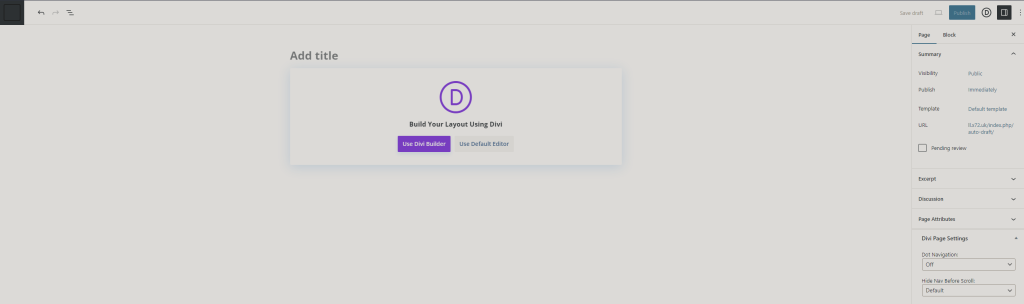
A few things to note here on this page:
- ‘Add title’ – Fairly self explanatory but enter the name of the page here,
- ‘Build your layout using Divi’ – If you have Divi installed then you will see this window below the title, this guide only covers the Divi builder so we will be pressing ‘Use Divi Builder’ eventually,
- ‘Save Draft’ & Publish – On the top right, you will see the buttons to save draft and publish. While editing and designing your new page, keep saving as draft until you are ready to publish. If you click on the publish button, everyone can view the new page you are working on.
- Additional Settings – On the right below the save draft and publish options, you have additional settings at your disposal, this is essentially ‘Quick Edit’ but the full version. For the most part, you can ignore most of these settings since Divi does all the heavy lifting for us.
Once you’re happy with that, just click on the purple ‘Use Divi Builder’ and it should refresh an additional time.
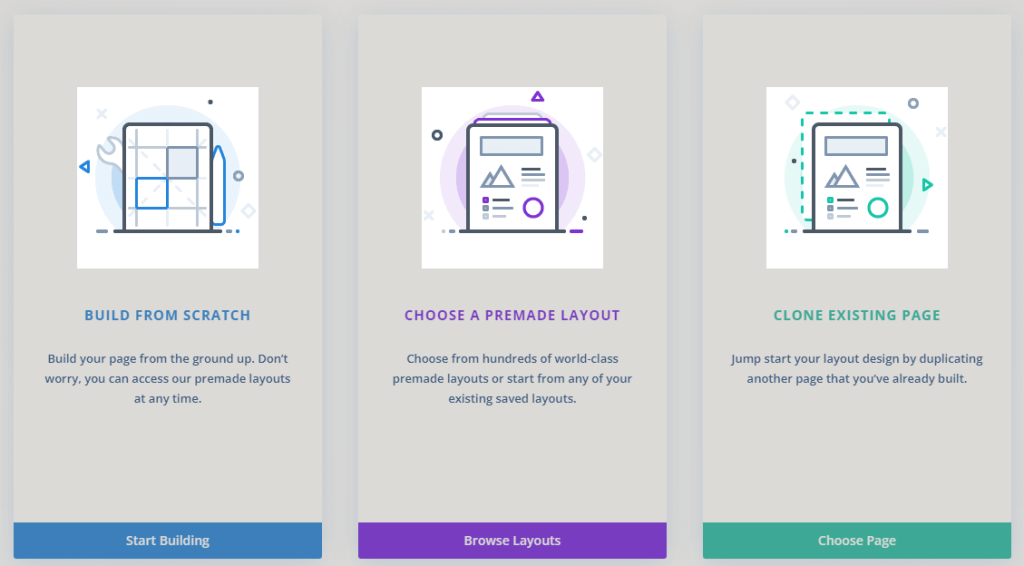
Once it loads, you will be presented with 3 options
- Build from scratch – Use this if you want to build the page from the ground up, not recommended for absolute beginners,
- Choose a premade layout – If you are working on a new project entirely, layouts are a fantastic way to get some inspiration and are quick to setup,
- Clone existing page – If you are working on your own webpage which has Divi installed and existing pages, you can clone another page and it will copy all modules to this new page so you can use it as a template! Sweet :p
For this example, the ‘Basics’ will cover some simple things so I will create from scratch for now.